WordPress website redesign: a plan that keeps your rankings
A redesign can lift enquiries or wipe out years of search traffic. This is the process I follow to make sure it does the first.
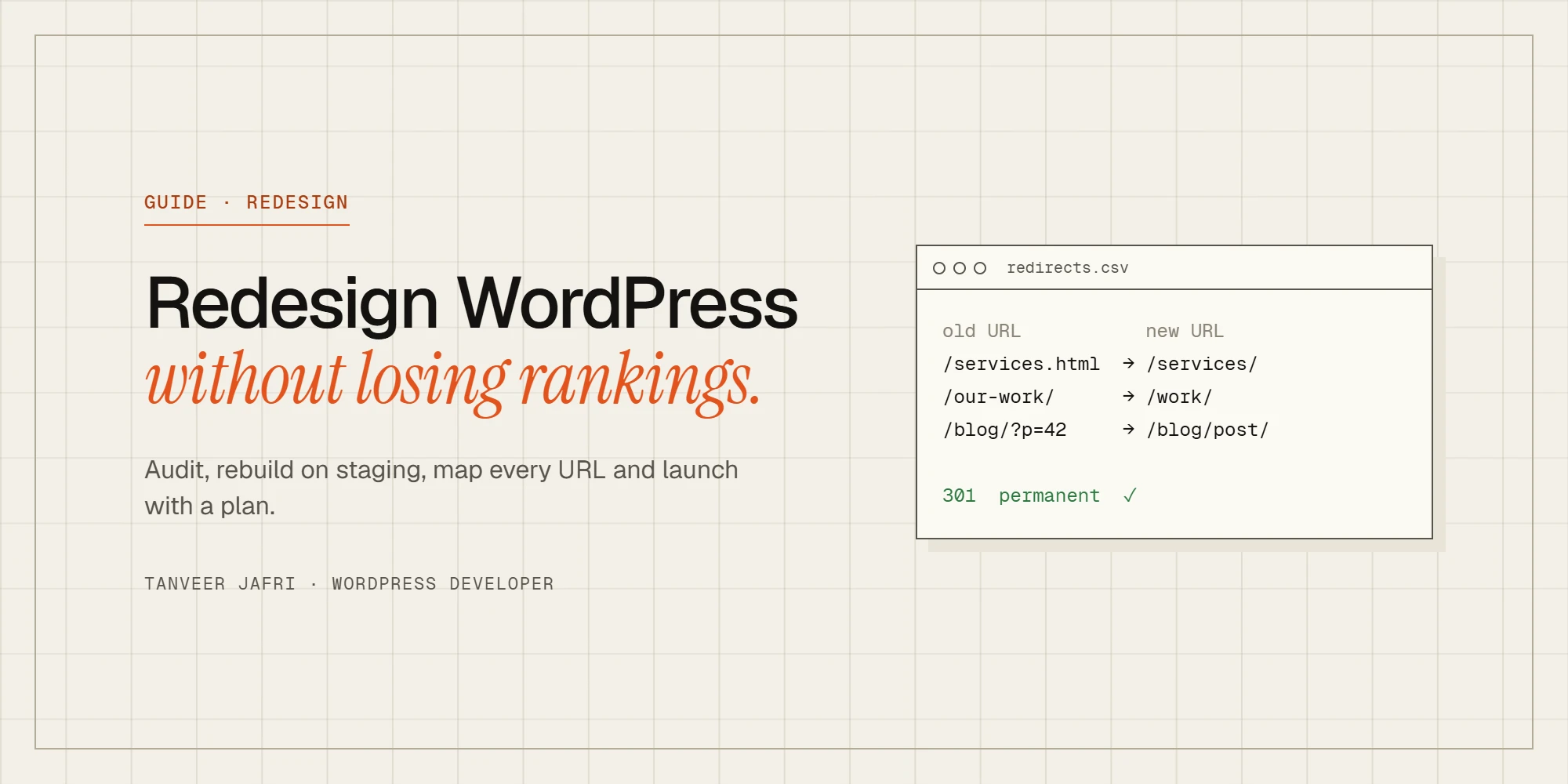
A WordPress website redesign is one of the best ways to win more enquiries, and one of the easiest ways to lose search traffic you spent years building. The difference is rarely the design itself. It’s whether the old site was properly understood before the new one replaced it. This is the process I use on redesigns, from small brochure sites to WooCommerce stores.
Know why you’re redesigning
“It looks dated” is a valid reason, but it’s rarely the only one. Write down what the new site must do better, because those goals decide every later choice:
- More enquiries or sales from the same traffic.
- A site your team can edit without calling a developer.
- Faster pages, especially on mobile.
- New services, products or markets.
- Fixing technical problems: an abandoned theme, broken plugins, security issues.
If the goal is more leads, the redesign needs clearer calls to action and better service pages, not just new colors. If the goal is easier editing, the build approach matters more than the look.
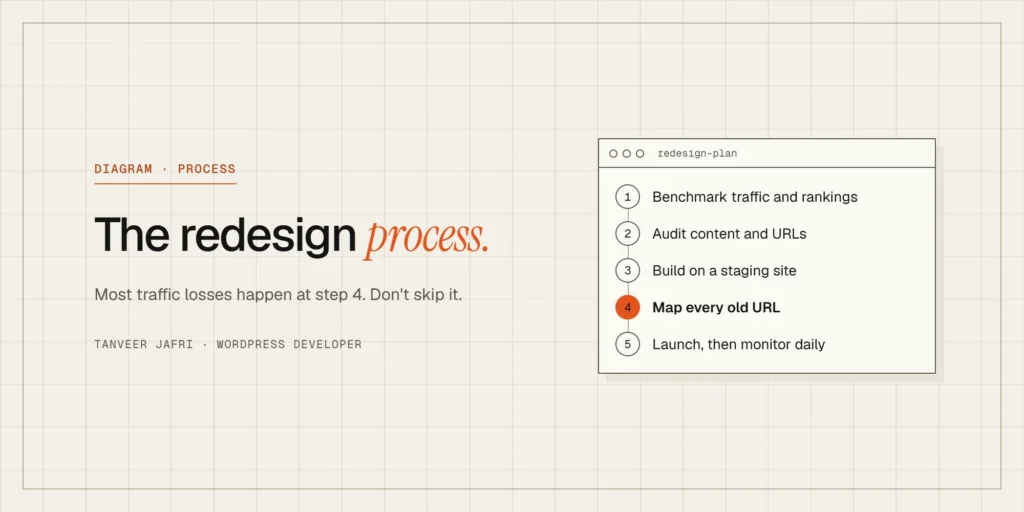
Step 1: benchmark before you touch anything
You can’t prove a redesign worked, or notice that it didn’t, without a “before” picture. Record:
- Monthly organic traffic and conversions from Google Analytics or your analytics tool.
- Top pages by clicks and the queries they rank for, from Google Search Console.
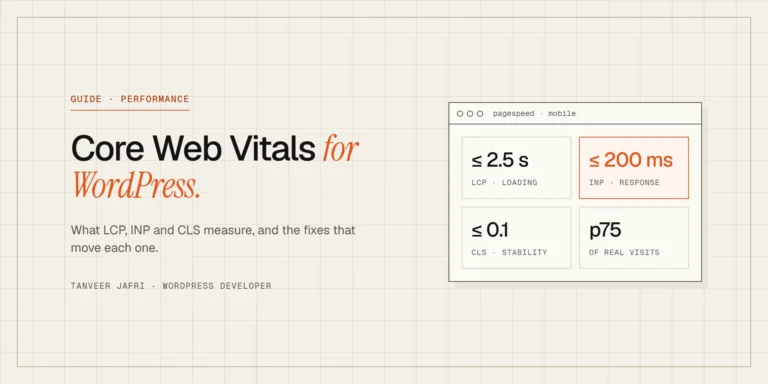
- Page speed and Core Web Vitals for your key templates.
- How many leads or orders the site produces per month.
Export this data and keep it. After launch, you’ll compare against it week by week.
Step 2: audit your content and URLs
Crawl the current site with a tool such as Screaming Frog, or export a list of every published page, post, product and category. For each URL, decide:
- Keep: it gets traffic, links or leads. Keep the URL if you possibly can.
- Improve: useful but thin or outdated. Rewrite it during the redesign.
- Merge: several weak pages on the same topic. Combine them into one strong page and redirect the others.
- Remove: no traffic, no links, no purpose. Delete it and redirect to the closest relevant page.
This is also when you find pages nobody remembered existed, which is exactly why you do it.
Step 3: design for your visitors, then build on staging
Start with the pages that matter most: the homepage, your main service or product pages and the contact page. Design the mobile version deliberately, not as an afterthought. Then build the new site on a staging copy, never by editing the live site piece by piece.
Two settings matter on staging:
- Block search engines so the unfinished site doesn’t get indexed. In WordPress, that’s the “Discourage search engines” option, and password protection is even safer.
- Use real content, not lorem ipsum. Real headings and real text reveal layout problems early.
On most redesigns I build with Elementor Pro and the Hello theme, so clients can edit text and images themselves afterwards, with global colors and fonts that keep the design consistent.
Step 4: map every old URL to a new one
This is the step that protects your rankings. Every URL from your audit needs a destination:
- Same URL on the new site? Nothing to do.
- New URL? Add a 301 redirect from the old address to the new one.
- Removed page? Redirect it to the most relevant remaining page, not just the homepage.
Keep the map in a spreadsheet, then add the redirects with a plugin such as Rank Math’s redirection module or at server level. Test a sample of old URLs after launch to make sure each one lands in the right place with a single redirect, not a chain.
Step 5: carry over the SEO details
Search engines rank pages, not designs, so carry over what made the old pages rank:
- Title tags and meta descriptions, improved where needed but not thrown away.
- Headings and the main content of pages that already rank well.
- Internal links between related pages.
- Image alt text and structured data, such as LocalBusiness or Product schema.
- Your XML sitemap and robots.txt settings.
If the old site had a blog with traffic, keep the post URLs. Changing /2019/05/post-name/ to /post-name/ is possible with redirects, but only do it if there’s a real benefit.
Step 6: test before launch
Before switching over, test the staging site like a visitor and like a search engine:
- Every form sends and arrives, including the confirmation email.
- Checkout works with a real test payment, if you sell online.
- Pages look right on a phone, a tablet and a laptop.
- Speed is at least as good as the old site.
- Analytics, Search Console verification, pixels and cookie consent all work.
- No pages are accidentally set to noindex.
Step 7: launch and monitor
Launch early in the week, at a quiet time, with a full backup of the old site. Then:
- Turn off “Discourage search engines” on the live site.
- Submit the new XML sitemap in Google Search Console.
- Check the Pages report in Search Console for new 404 errors and fix them with redirects.
- Compare traffic and rankings with your benchmark every week for the first two months.
Small ranking movements in the first few weeks are normal while Google recrawls the site. A sharp drop on specific pages usually means a missing redirect or lost content, and it’s fixable if you catch it early.
Common redesign mistakes
Most of the redesign problems I’m asked to fix come from the same short list:
- Launching from staging with search engines still blocked. The new site looks perfect and disappears from Google within days.
- Changing every URL “to make them cleaner” without a redirect map.
- Replacing detailed service pages with short, design-led ones. The page looks better and ranks worse, because the content that answered searchers’ questions is gone.
- Forgetting the small pages: old landing pages from ad campaigns, PDF downloads and image URLs that other sites link to.
- Adding heavy sliders and animations that make the new site slower than the old one.
- Nobody owning the launch. Someone has to check forms, redirects and Search Console on launch day and in the weeks after.
Every item on that list is cheap to prevent and expensive to fix later.
How long does a WordPress redesign take?
A small business site with five to ten pages usually takes two to four weeks, depending mostly on how quickly content and feedback arrive. Larger sites, WooCommerce stores and redesigns with custom functionality take longer. The audit and redirect work adds a few days, and it’s the best few days you’ll spend on the project.
Frequently asked questions
Will a redesign hurt my SEO?
It doesn’t have to. Traffic drops after redesigns usually come from changed URLs without redirects, deleted content or pages left on noindex. Follow the audit and redirect steps and most sites keep or improve their rankings.
Should I redesign or rebuild from scratch?
If the site runs on an abandoned theme, a page builder you no longer use or a stack of conflicting plugins, a clean rebuild is often cheaper long-term. If the structure is sound and only the look is dated, a redesign of the templates may be enough.
Can I keep my current content?
Usually yes, and you should keep anything that ranks or converts. A redesign is also a good moment to improve weak pages rather than simply moving them.
Planning a redesign?
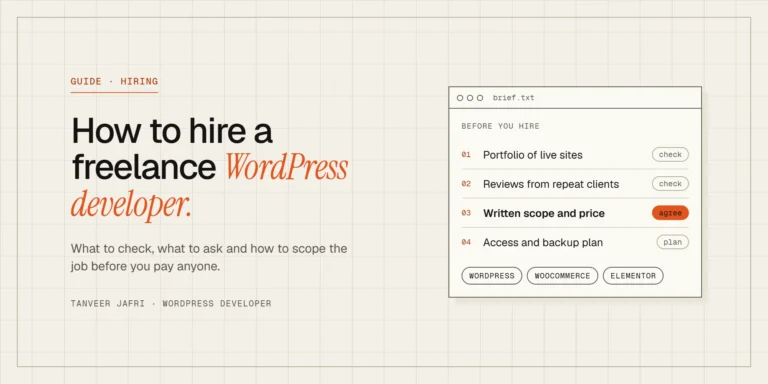
Website development and redesign is the work I do most, including the Fahmir Aviation redesign. If you’re weighing up a redesign, my guide on how to hire a freelance WordPress developer covers what to ask before you start. When you’re ready, send me your current site and I’ll tell you what I’d keep, what I’d change and what it would take.

Tanveer JafriFreelance WordPress developer. I build WooCommerce functionality, custom plugins and Elementor Pro sites. About me
Discussion
Comments