How to add LocalBusiness schema to WordPress (with and without a plugin)
A step-by-step guide to LocalBusiness schema in WordPress: the fields that matter, a complete JSON-LD example, plugin and code options, and how to test it.
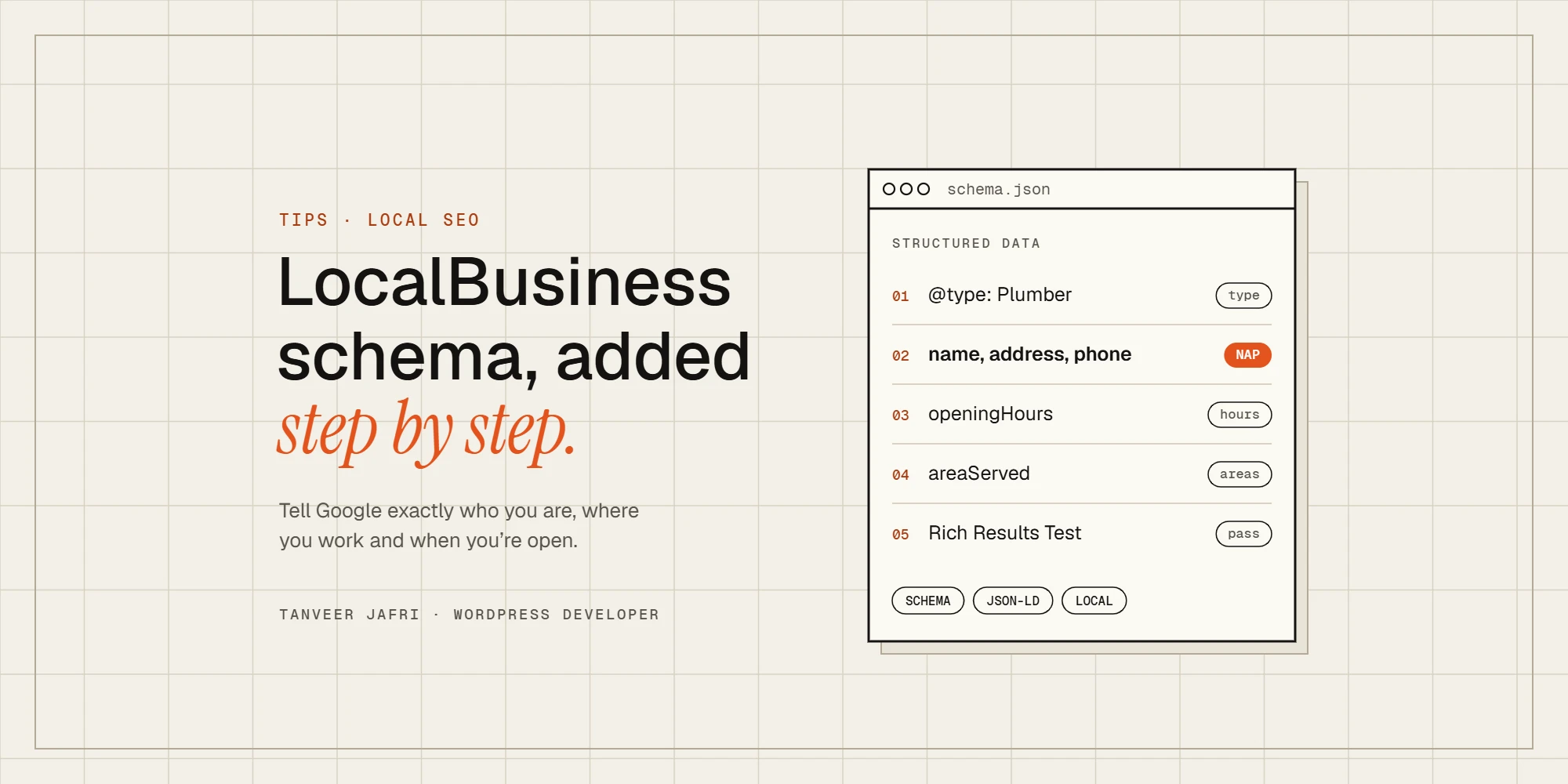
LocalBusiness schema is a small block of code that tells Google your business name, address, phone number, opening hours and the areas you serve, in a format it doesn’t have to guess at. It won’t lift you to the top of the map results on its own, but it removes doubt about who you are and where you work, and it’s one of the few local SEO tasks you can finish in an afternoon. Here’s how to add it to WordPress, with or without a plugin.
What LocalBusiness schema is (and isn’t)
Schema is structured data, written in a vocabulary from schema.org, that search engines read. For local businesses it describes the business itself. It is not a ranking shortcut, and it won’t give you review stars for reviews you collected about your own business. What it does is make your details consistent and machine-readable, which supports your Google Business Profile and your service pages.
If you’re starting local SEO from scratch, begin with my local SEO checklist for WordPress and come back to this step.
Pick the most specific business type
“LocalBusiness” works, but schema.org has more specific types that describe you better, for example Plumber, Electrician, RoofingContractor, GeneralContractor, HVACBusiness, Locksmith, Dentist or LegalService. Use the most specific one that fits.
The fields that matter
- name: exactly as it appears on your Google Business Profile.
- address: your full postal address, if customers can visit or it’s shown on your profile.
- telephone: with the country code.
- url, logo and image: your homepage, logo and a real photo.
- geo: latitude and longitude of the business.
- openingHoursSpecification: your actual hours.
- areaServed: the towns or regions you cover, especially for businesses that travel to customers.
- sameAs: links to your Google Business Profile and social profiles.
A complete example
Here’s a working example for a plumbing business. Replace every value with your own:
<script type="application/ld+json">
{
  "@context": "https://schema.org",
  "@type": "Plumber",
  "name": "Example Plumbing Ltd",
  "url": "https://www.example.com/",
  "logo": "https://www.example.com/logo.png",
  "image": "https://www.example.com/van.jpg",
  "telephone": "+44 1234 567890",
  "priceRange": "££",
  "address": {
    "@type": "PostalAddress",
    "streetAddress": "12 High Street",
    "addressLocality": "Blackburn",
    "addressRegion": "Lancashire",
    "postalCode": "BB1 1AA",
    "addressCountry": "GB"
  },
  "geo": { "@type": "GeoCoordinates", "latitude": 53.7486, "longitude": -2.4875 },
  "areaServed": ["Blackburn", "Darwen", "Accrington"],
  "openingHoursSpecification": [{
    "@type": "OpeningHoursSpecification",
    "dayOfWeek": ["Monday", "Tuesday", "Wednesday", "Thursday", "Friday"],
    "opens": "08:00",
    "closes": "18:00"
  }],
  "sameAs": [
    "https://www.facebook.com/exampleplumbing",
    "https://www.instagram.com/exampleplumbing"
  ]
}
</script>
Option 1: add it with your SEO plugin
The easiest route is the SEO plugin you already use. Rank Math has local business settings in its Titles & Meta section (the Local SEO module), where you enter your business type, address, phone and hours. Yoast offers a paid Local SEO add-on that does the same and supports multiple locations. Fill in every field, save, and check the output with the testing tools below.
Option 2: add the JSON-LD yourself
If you want full control, or your plugin’s output is missing fields you need, add the JSON-LD on your homepage (or contact page) with a small custom plugin or a code snippets plugin:
function tj_local_business_schema() {
	if ( ! is_front_page() ) {
		return;
	}
	?>
	<!-- paste the JSON-LD script here -->
	<?php
}
add_action( 'wp_head', 'tj_local_business_schema' );
Two rules: output it once, and don’t also enable the same LocalBusiness output in your SEO plugin, or Google sees two competing versions of your business.
Service-area businesses
If customers don’t visit you and your Google Business Profile hides your address, don’t publish that address in schema either. Leave out the street address, keep your town or region and country, and list the places you cover in areaServed. The rule is simple: your schema should never say more than your profile does.
Multiple locations
Give each location its own page, with its own address, phone number, hours and schema on that page. Don’t put every branch in one block on the homepage, and don’t create location pages for towns where you have no office just to rank there.
Test it
- Rich Results Test (from Google) to check that Google can read the markup.
- Schema Markup Validator (validator.schema.org) to check the full structure, including fields Google doesn’t show as rich results.
- Search Console: watch the Enhancements reports for errors after Google recrawls the page.
Common mistakes
- Details that don’t match the Google Business Profile: a different phone number, an old address or a shortened name.
- Marking up reviews of your own business to get star ratings. Google doesn’t show those for LocalBusiness.
- Two plugins (or a plugin and a theme) both outputting business schema.
- Adding a full address for a home-based business that hides it on Google.
- Adding schema once and forgetting it when hours, phone or address change.
Frequently asked questions
Does LocalBusiness schema improve rankings?
Not directly. It helps Google understand and trust your business details, which supports your local visibility alongside your Google Business Profile, reviews and service pages.
Which page should have LocalBusiness schema?
Usually the homepage, or the contact page for a single-location business. Businesses with several locations should add it to each location page.
Do I need Rank Math Pro or Yoast Local SEO?
No. Free plugin settings or a small custom snippet are enough for a single location. Paid add-ons are mainly useful when you manage several locations.
Want it done for you?
I set up local SEO and schema for service businesses on WordPress. Send me your site and I’ll check your schema, business details and service pages. You can also see my services and client reviews.

Tanveer JafriFreelance WordPress developer. I build WooCommerce functionality, custom plugins and Elementor Pro sites. About me