Why your WooCommerce store feels slow, even with caching
Good speed scores but shoppers still complain? How to make a WooCommerce store feel instant with prefetching, tap feedback and page transitions, without breaking the cart.
You’ve added page caching, a CDN and object caching, and the speed test looks fine. Yet shoppers still say the store feels slow. Often the problem isn’t how fast the server answers but what happens between a tap and the next page appearing. Here is how to make a WooCommerce store feel faster, and the WooCommerce-specific traps to avoid.
Measured speed vs felt speed
Lab scores measure one page load. Shoppers experience a sequence: tap a category, wait, tap a product, wait, add to cart. Every blank pause is noticed, even when each page loads in a second. Perceived performance means removing or hiding those pauses, so the store responds the moment someone acts.
First, check the basics
Perceived-performance tricks work on top of a fast store, not instead of one. Before anything else, confirm:
- Full-page caching is on for logged-out visitors, and product and category pages are actually served from cache.
- Persistent object caching (Redis or Memcached) is enabled, which helps logged-in and cart sessions that can’t use page cache.
- Images are sized correctly and served as WebP or AVIF.
- You aren’t loading scripts from plugins you no longer use.
Prefetch the next page before the click
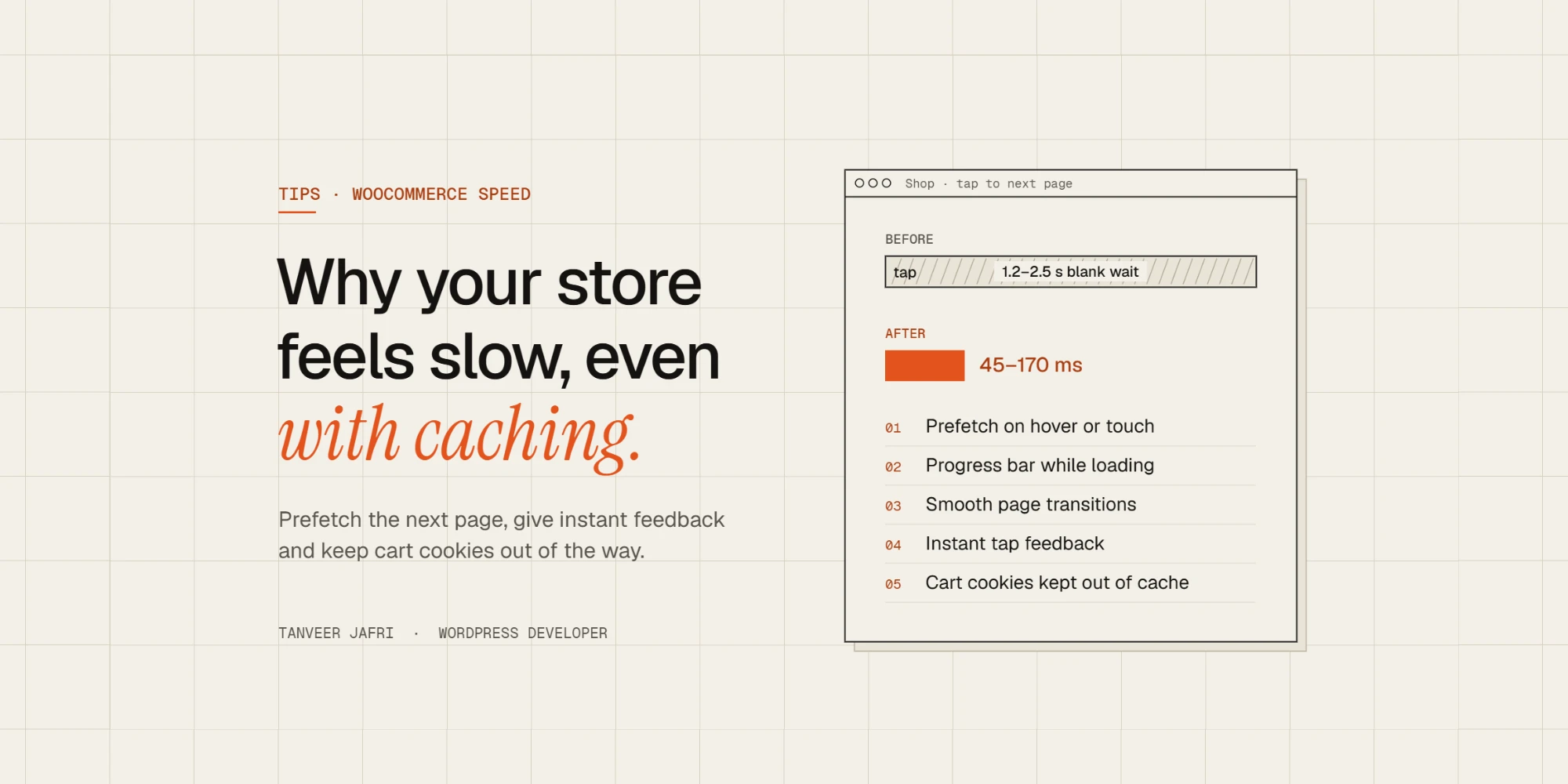
The biggest win is to start loading a page before the shopper finishes clicking. Since WordPress 6.8, core outputs speculation rules that prefetch links when a visitor starts interacting with them, in supporting browsers. You can make this more eager, for example on hover, or add your own rules for key links such as categories.
On a WooCommerce store, exclude anything that changes state. Never prefetch add-to-cart links, the cart, checkout, My Account, logout or any URL with add-to-cart, remove_item or a nonce in it. Prefetching those can add products to carts or log people out without them asking.
Give feedback the moment someone taps
- Tap feedback. A pressed state on buttons and product cards shows the tap registered, which matters most on mobile.
- A progress bar. A thin bar at the top of the screen tells shoppers the next page is on its way, so a short wait doesn’t look like a frozen site.
- Disable double submits. Lock the Add to cart button while the request runs, so impatient taps don’t add two items.
Smooth page transitions
Cross-document view transitions let the browser fade or slide between two normal page loads, with no single-page app needed. Opt in with one CSS rule; browsers that don’t support it simply load the page as usual.
@view-transition {
  navigation: auto;
}
Keep transitions short, well under half a second, and respect visitors who prefer reduced motion with a prefers-reduced-motion media query.
Mind WooCommerce cookies and caching
WooCommerce sets cookies such as woocommerce_items_in_cart and wp_woocommerce_session_ once a shopper adds something to the cart, and most caching layers bypass the page cache when they see them. That is correct for cart and checkout, but it means a shopper with one item in the cart may suddenly get slow, uncached product pages. Check which cookies your host and caching plugin treat as cache-busting, and make sure any prefetching or transition code never serves one shopper’s cart or account page to another.
What this can achieve
On a WooCommerce store I worked on, the server side was already well tuned on managed hosting with object and CDN caching. A small custom plugin added link prefetching, a progress bar, page transitions, tap feedback and a cookie guard. Cached pages went from taking 1.2–2.5 seconds to appearing in 45–170 milliseconds.
Other reasons a WooCommerce store is slow
If the store still feels slow after the basics and the perceived-performance work above, look at these common causes:
- Cart fragments. WooCommerce updates the mini-cart with an AJAX request. On some setups it runs on every page, even for shoppers with an empty cart. Limit it to pages that need it, or use a theme that updates the cart differently.
- Heavy product filters and live search. Plugins that query the database on every keystroke or filter change can overload shared hosting. Index-based search or simpler filters help.
- Too many product variations loaded at once on a single product page. Very large variation sets are slow to render and to calculate.
- Admin-ajax and background jobs. Abandoned-cart tools, analytics and stock syncs can fire constant requests. Check the browser’s network tab and your server logs.
- Slow database queries. Large stores with years of orders, sessions and logs benefit from database cleanup and, where possible, High-Performance Order Storage, which moves orders into dedicated tables.
- Uncached logged-in customers. Wholesale stores where everyone logs in can’t rely on page caching, so object caching and efficient code matter far more.
How to find out what’s slowing your store
Guessing wastes time. A few tools give real answers:
- PageSpeed Insights for each key template: shop, category, product, cart and checkout.
- Query Monitor, a free plugin that shows slow database queries, hooks and HTTP requests for each page, visible only to admins.
- Your browser’s network tab to see which requests run after the page loads, and how long they take.
- Your host’s server logs and monitoring for CPU, memory and PHP worker limits during busy times.
Test as three different visitors: a guest, a shopper with something in the cart, and a logged-in customer. They often get very different experiences.
Frequently asked questions
Why is my WooCommerce store slow only when logged in?
Logged-in users and shoppers with items in the cart usually bypass the page cache, so every page is generated by WordPress. Object caching, efficient plugins and fast hosting matter most for them.
Will a faster theme fix a slow WooCommerce store?
It can help if the current theme is heavy, but most slow stores are slowed by plugins, database load and hosting rather than the theme alone. Measure first.
Does speed affect WooCommerce sales?
Shoppers notice every pause between tapping and seeing the next page, especially on mobile. Reducing those pauses makes browsing feel effortless, which is exactly what you want before someone decides to buy.
A checklist
- Confirm page cache, object cache and image optimisation first.
- Prefetch likely next pages, but exclude cart, checkout, account and add-to-cart URLs.
- Add tap feedback and a progress bar.
- Turn on cross-document view transitions with a reduced-motion fallback.
- Review which WooCommerce cookies bypass your cache.
- Test as a guest, as a shopper with items in the cart and as a logged-in customer.
If your store is fast on paper but still feels slow, send me the URL and I’ll tell you where the pauses come from.

Tanveer JafriFreelance WordPress developer. I build WooCommerce functionality, custom plugins and Elementor Pro sites. About me