How to speed up an Elementor website: the fixes that matter
Slow Elementor pages are usually down to page structure, fonts, images and scripts, not Elementor itself. The fixes that make the biggest difference, in order.
Elementor makes it quick to build good-looking pages, and just as quick to build slow ones. Most slow Elementor sites aren’t slow because of Elementor itself, but because of how pages are put together and what is loaded alongside them. These are the fixes that make the biggest difference, roughly in order of impact.
Measure before you change anything
Test a few key pages, such as the homepage, a service page and a blog post, in PageSpeed Insights, on mobile. Note Largest Contentful Paint (LCP), Interaction to Next Paint (INP) and Cumulative Layout Shift (CLS). If the page has real-user data, trust that over the lab score. Re-test the same pages after each change so you know what actually helped.
Build lighter pages
Use containers, not nested sections
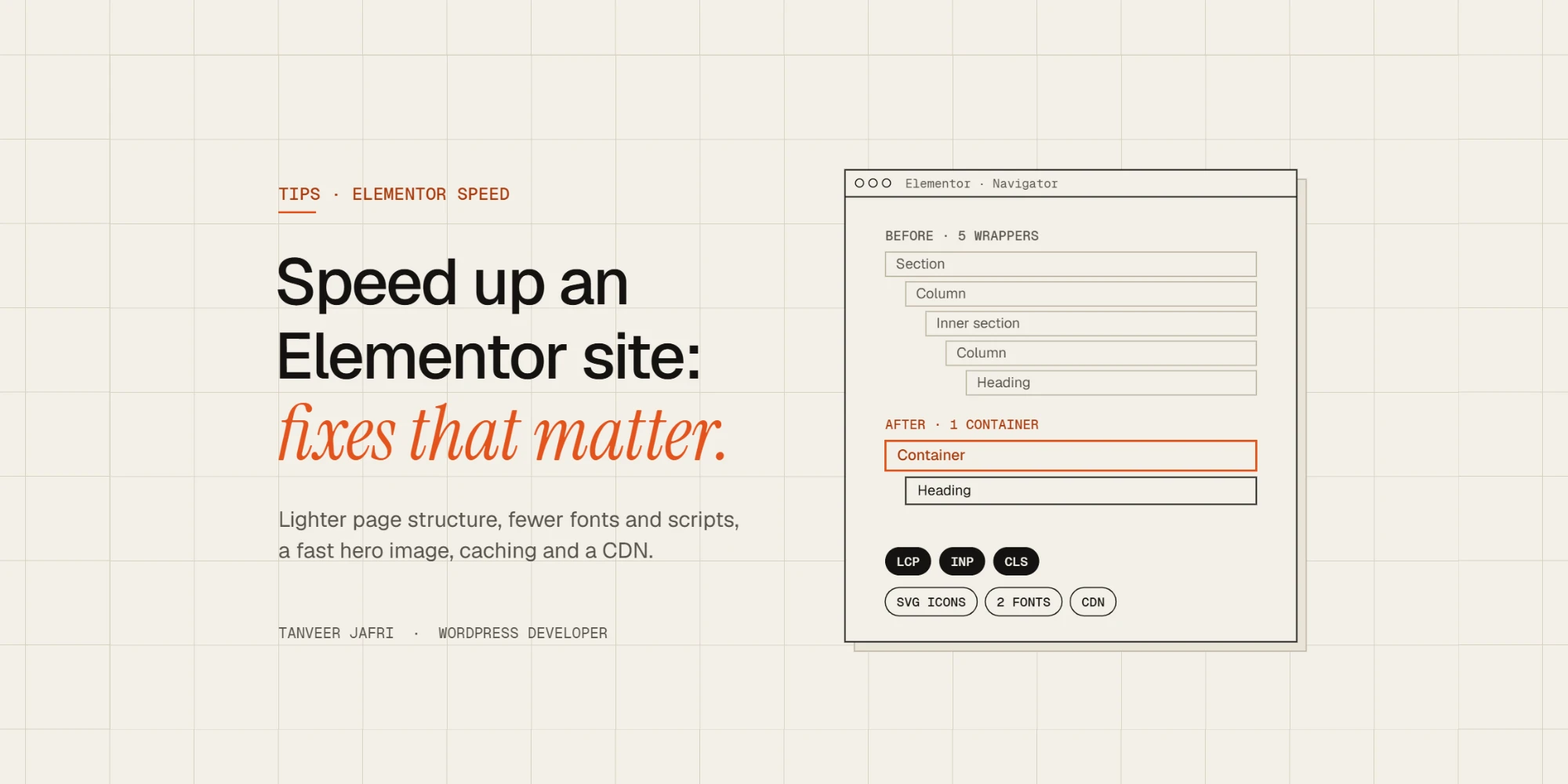
Flexbox containers produce far less HTML than the old section, column and inner-section structure. Fewer wrapper elements mean a smaller page and faster rendering. When you rebuild a slow page, start by flattening it into containers.
Use fewer, simpler widgets
Every widget adds markup, and some add their own CSS and JavaScript. A heading and text editor widget are lighter than a fancy animated headline. Ask whether each carousel, counter and entrance animation earns its place, especially above the fold.
Load fewer fonts, icons and scripts
- Limit fonts. Two font families with only the weights you use is plenty. Host them locally rather than loading them from a third-party server.
- Inline icons as SVG. Elementor can render icons as inline SVG instead of loading the full Font Awesome icon font. Turn it on in Elementor’s settings if it isn’t already.
- Use external CSS files. Setting Elementor’s CSS print method to external files lets browsers and caches reuse them.
- Remove unused add-ons. Each Elementor add-on pack can load its scripts on every page. Keep only the ones you use.
Fix the hero image and media
The largest element in the first screen is usually the LCP element, often a hero image. Serve it at the size it is displayed, in WebP or AVIF, and don’t lazy-load it: it should load first. Lazy-load the images further down instead. Background videos are heavy; if you use one, compress it hard, keep it short, add a poster image and consider showing an image on mobile.
Add caching and a CDN
A page-caching plugin or host-level cache turns Elementor pages into static HTML for visitors, which removes most of the server time. Add a CDN for images, CSS and JavaScript, and a persistent object cache if your host offers one. After big design changes, regenerate Elementor’s CSS files and clear every cache layer.
Delay what isn’t needed straight away
Chat widgets, analytics, heatmaps and social embeds rarely need to load before the page is usable. Delay them until user interaction or after load. Test forms, popups and menus after delaying scripts, because those are the parts most likely to break.
Don’t ignore hosting
If uncached pages take seconds to generate, page builders feel it most. Up-to-date PHP, enough memory and a host built for WordPress make the editor faster too, not only the front end.
Elementor settings worth checking
Elementor includes several performance options that are easy to miss. In Elementor → Settings and the Features tab, check these on any site you want to speed up:
- Optimized DOM output and flexbox containers enabled, so pages produce less HTML.
- Inline font icons, which renders icons as SVG instead of loading icon fonts.
- Improved asset loading and improved CSS loading, so widget styles and scripts load only on pages that use them.
- Lazy-load background images, for sections below the first screen.
- Google Fonts set to load locally, or disabled if your theme hosts fonts itself.
The exact names change between Elementor versions, and some options graduate from experiments to defaults over time. After changing any of them, regenerate CSS in Elementor → Tools, clear every cache and test the key pages again.
Common Elementor speed mistakes
- Background videos on mobile. Even compressed, they’re heavy. Use a poster image on small screens.
- Several add-on packs installed for one widget each. Every pack can load its assets site-wide.
- Huge images scaled down with CSS: a 4000-pixel photo displayed at 600 pixels still downloads in full.
- Entrance animations on everything. They delay content and add JavaScript; use them sparingly.
- Global widgets and templates nested inside each other several levels deep, which makes pages harder to render and harder to edit.
- Testing only on desktop. Most Elementor sites are fast on a laptop and slow on a mid-range phone.
How much faster can an Elementor site get?
It depends where you start. A site built with nested sections, three add-on packs and an unoptimized hero image usually has plenty of room to improve, and the biggest gains tend to come from server caching, the hero image and removing unused scripts. A lean build on the Hello theme with containers starts fast and stays fast. The only way to know for your site is to measure before and after each change, on mobile, with the same pages each time.
Frequently asked questions
Is Elementor slow?
Not inherently. Elementor sites can pass Core Web Vitals comfortably. Most slow Elementor sites are slow because of heavy page structure, add-ons, images and hosting, all of which can be fixed.
Which theme is fastest with Elementor?
Hello Elementor is the lightest choice, because it leaves design to Elementor and loads very little of its own. Heavier multipurpose themes add their own styles and scripts on top.
Do I need a caching plugin if my host has caching?
Often not. Many managed WordPress hosts include server-level page caching. Running two page caches at once can cause conflicts, so check what your host provides before adding a plugin.
A quick checklist
- Measure LCP, INP and CLS on mobile first.
- Rebuild heavy pages with containers.
- Cut widgets, animations and add-ons you don’t need.
- Two font families, hosted locally; icons as inline SVG.
- Right-sized WebP or AVIF hero image, not lazy-loaded.
- Page cache, CDN and object cache.
- Delay third-party scripts, then test forms and menus.
- Measure again.
I build sites on Elementor Pro and the Hello theme with speed in mind from the first section. If your Elementor site is slow, get in touch and I’ll find what’s holding it back.

Tanveer JafriFreelance WordPress developer. I build WooCommerce functionality, custom plugins and Elementor Pro sites. About me