How to add B2B customer approval to WooCommerce
Wholesale stores need to check buyers before they see trade prices. How a WooCommerce customer approval workflow works, what to decide first and which hooks do the work.
Wholesale stores usually can’t sell to everyone. Prices are trade-only, minimum orders apply and some countries need extra checks. WooCommerce doesn’t include a customer approval step out of the box, so B2B stores have to add one. Here is how an approval workflow fits together, what to decide before you build it and which WooCommerce hooks do the work.
Why B2B stores need customer approval
In a normal shop, anyone can register and buy straight away. A wholesale store has different needs:
- Trade pricing stays private. Wholesale prices shouldn’t be visible to retail shoppers or competitors.
- Only real businesses can order. You want a company name, a tax or VAT number and an idea of how the buyer sells.
- Rules differ by country. You may approve buyers in one market automatically and review others by hand, or not sell to some regions at all.
- Fewer bad orders. Checking accounts before the first order cuts fraud, chargebacks and support time.
Decide the rules before you build
Most problems with approval systems come from rules that were never written down. Answer these first:
- What information must a buyer give to apply, and which fields are required?
- Can pending customers log in, and if so, what can they see: the catalogue without prices, or nothing at all?
- Which countries are approved automatically, which need manual review and which are blocked?
- Should some applications be approved after a set time if nobody reviews them?
- What happens to a declined applicant: a clear message, an email, a way to reapply?
- Who gets notified when a new application arrives?
A typical approval workflow
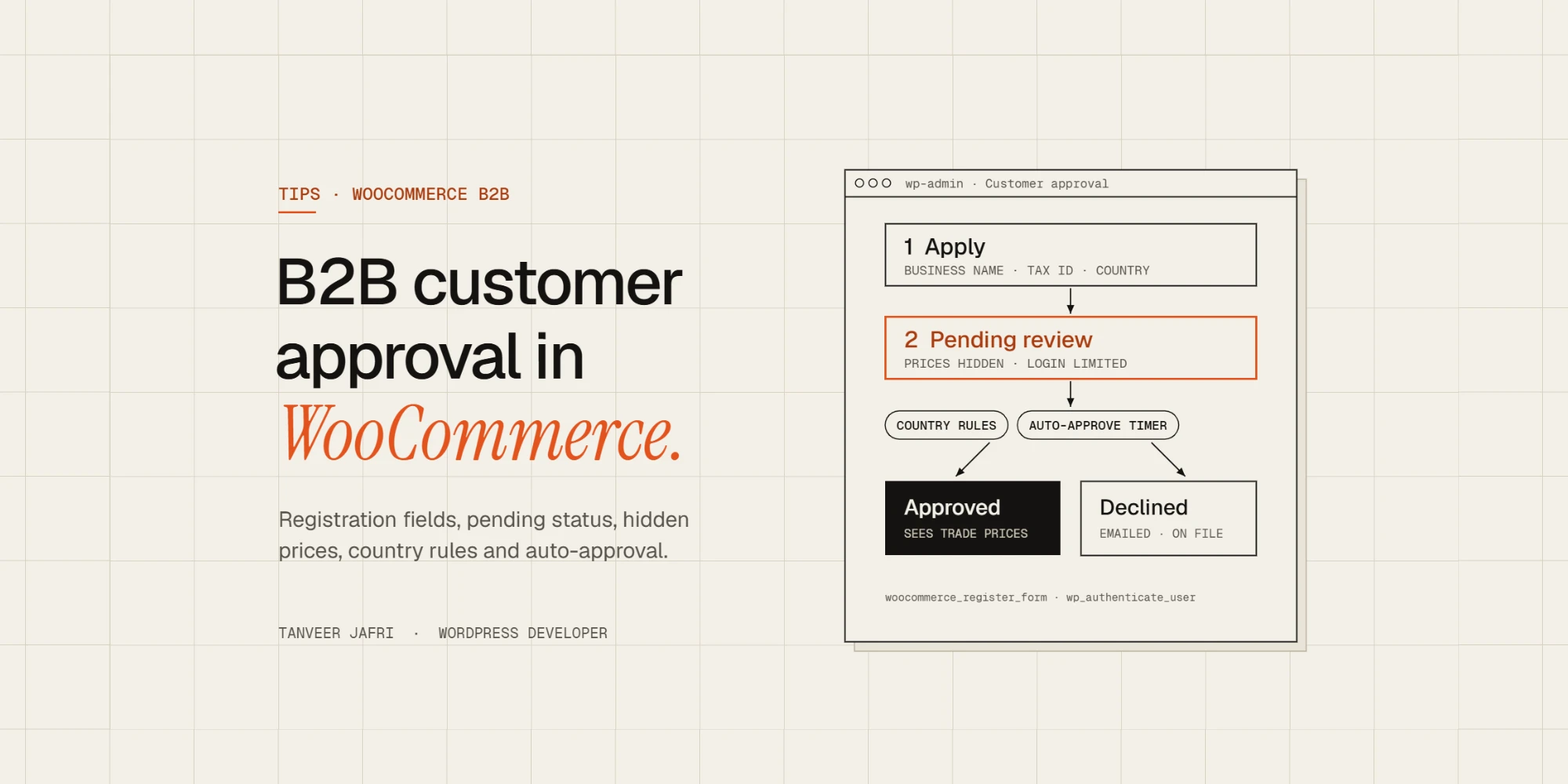
- The buyer fills in a registration form with business questions.
- The account is created with a pending status.
- The store owner is notified and the buyer sees a “thanks, we’re reviewing your application” message.
- Rules run: approve now, schedule an automatic approval, or wait for a person.
- The account becomes approved or declined, and the buyer gets an email either way.
- Approved buyers log in and see prices; everyone else doesn’t.
How to build it in WooCommerce
Extend the registration form
Add business fields to the My Account registration form with woocommerce_register_form, validate them with woocommerce_registration_errors and save them as user meta on woocommerce_created_customer. Keep the questionnaire short: every extra field lowers the number of finished applications.
Store a status on each customer
Save the approval status as user meta, for example pending, approved or declined. Use “declined” rather than deleting the account, so you keep a record and avoid the same person applying again unnoticed.
add_action( 'woocommerce_created_customer', function ( $customer_id ) {
    update_user_meta( $customer_id, 'b2b_status', 'pending' );
} );
Block login or hide prices until approval
You can stop pending users from logging in with the wp_authenticate_user filter, returning a WP_Error with a friendly message. If you prefer to let them browse, hide prices with woocommerce_get_price_html and stop purchases with woocommerce_is_purchasable. Do this on the server; hiding prices with CSS leaves them in the page source.
Add country rules and timers
Read the billing country saved at registration and look up the rule for that country. For timed auto-approval, schedule a single action with Action Scheduler, which ships with WooCommerce, when the account is created. When the action runs, check the status first: if someone already approved or declined the account by hand, do nothing.
Notify both sides
Send the admin an email for each new application with a link to the user profile, and send the buyer an email when the decision is made. Clear emails save a lot of “did you get my application?” messages.
Common mistakes
- Hiding prices only with CSS or JavaScript.
- Forgetting REST API and feed output, which can expose prices to non-approved users.
- Letting cached pages show prices to logged-out visitors because the price markup was cached once for an approved user.
- No admin screen to filter pending applications, so they get missed.
- Hard-coding one country, then rewriting everything when the business expands.
Approval and the rest of your wholesale setup
Customer approval is usually the first piece of a B2B store, not the last. Once you know who your approved buyers are, you can build the rest of the wholesale experience around that status:
- Wholesale pricing shown only to approved customers, as a percentage discount, fixed trade prices or tiered pricing by quantity.
- Minimum order values or quantities for trade accounts.
- Restricted catalogue: some products visible only to certain customer groups.
- Different stock messages for different buyers. On one project, I built a per-customer stock visibility plugin so selected buyers see products as in stock while others see them as unavailable, without touching real inventory.
- Payment terms, such as invoice or bank transfer, available only to approved accounts.
Planning these together avoids rebuilding the approval logic later when pricing rules arrive.
Testing an approval workflow
Approval systems fail in the gaps between steps, so test every path:
- Register as a new buyer from an auto-approved country, a manual-review country and a blocked country.
- Try logging in while pending, if login is blocked.
- Visit product pages, the shop, search results, the REST API and any product feeds while logged out and while pending, and confirm prices stay hidden.
- Approve and decline accounts by hand and check both emails arrive.
- Let a timed approval run and confirm it skips accounts that were already reviewed.
- Clear the cache and repeat the logged-out checks.
Write down the expected result for each case before you test. It’s the quickest way to catch a rule that only works in the happy path.
Frequently asked questions
Can WooCommerce approve customers automatically?
Not out of the box. You need a plugin or custom code that gives each new customer a pending status and applies your rules, such as auto-approving certain countries or approving after a set time.
How do I hide prices from non-approved customers?
Filter the price HTML and make products non-purchasable for anyone who isn’t approved, on the server. Hiding prices with CSS leaves them in the page source and in feeds.
Should I use a plugin or a custom solution?
Start with a plugin if your rules are simple and standard. Choose a custom plugin when approval depends on your own questionnaire, country rules or timers, or when you’ve already outgrown a plugin’s settings. You can see how I approached one in the B2B customer approval case study.
Plugin or custom build?
An off-the-shelf B2B plugin is a good start if your rules are simple. A custom plugin makes sense when approval depends on your own questionnaire, rules change by country or you need timers and statuses that match how your team actually works. I built a multi-country customer approval plugin for a wholesale watch supplier that started as a US-only gate and grew into exactly that.
If you need an approval workflow for your store, tell me how your buyers apply today and I’ll suggest the simplest setup that works.

Tanveer JafriFreelance WordPress developer. I build WooCommerce functionality, custom plugins and Elementor Pro sites. About me