WP Rocket for WooCommerce: safe settings that don’t break checkout
The WP Rocket settings I use on WooCommerce stores, tab by tab: what’s safe, what breaks carts and payment buttons, and how to test before customers notice.
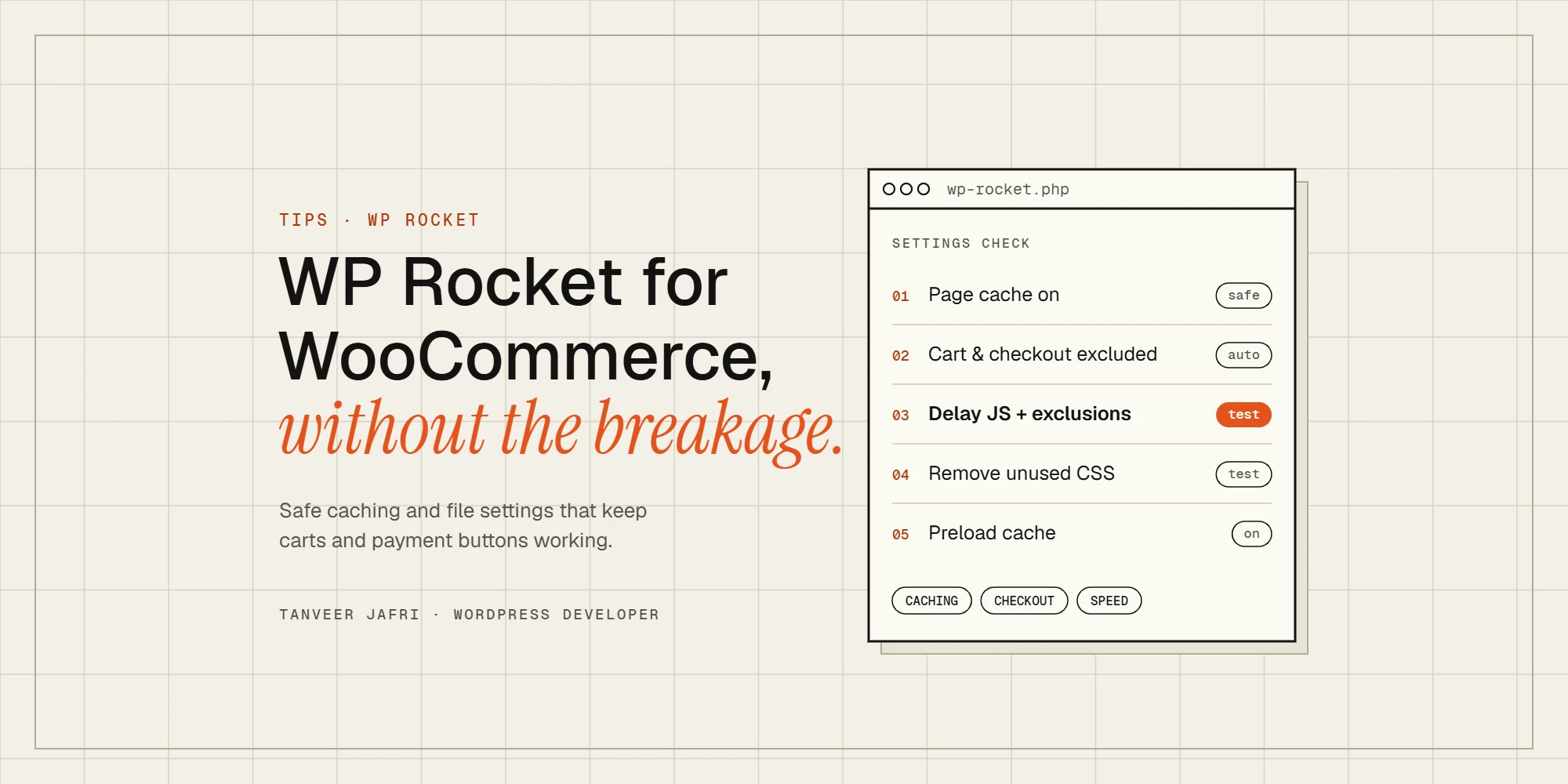
WP Rocket is one of the easiest ways to make a WooCommerce store faster, and also one of the easiest ways to break one. Most of the problems I fix after a WP Rocket install aren’t caused by caching at all. They come from the file optimisation options: a payment button that stops loading, a variation dropdown that does nothing, a mini cart that never updates. Here are the settings I use on WooCommerce stores, tab by tab, and how to test them before your customers find the problems for you.
Is WP Rocket worth it for WooCommerce?
Usually, yes, if your host doesn’t already provide full-page caching. WP Rocket handles page caching, preloading, file optimisation and lazy loading in one plugin, and it knows about WooCommerce out of the box. If you’re on a host with its own server-level cache (LiteSpeed, Nginx FastCGI or a managed WordPress host), you may only need WP Rocket’s file optimisation features, or nothing at all. Running two page caches on top of each other causes more trouble than it solves.
One thing WP Rocket can’t do: make the uncached part of the store fast. Carts, checkout and logged-in customers always go back to WordPress. If those pages are slow, the fix is hosting, object caching and fewer heavy plugins. I explain why in why WooCommerce is so slow, even with caching.
Cache tab
- Enable caching for mobile devices: on.
- Separate cache files for mobile devices: only if your theme serves different HTML to phones. Most responsive themes don’t need it.
- Enable caching for logged-in WordPress users: off for most stores. It creates a cache per user, and customer account pages can show stale details.
- Cache lifespan: 10 hours is a sensible default. Shorten it if stock levels or prices change many times a day.
Cart, checkout and account pages
WP Rocket automatically excludes the WooCommerce cart, checkout and My Account pages from the cache. Leave that alone. If you’ve built a custom checkout or a quote page on a different URL, add it under Advanced Rules → Never Cache URL(s).
If you use WooCommerce geolocation to set taxes or shipping by country, set the default customer location to Geolocate (with page caching support) in WooCommerce → Settings → General. Otherwise cached pages can show one visitor’s country prices to everyone.
File optimisation: where stores break
This tab gives the biggest speed gains and causes the most bugs. Turn options on one at a time and test after each one.
CSS
- Minify CSS files: safe on almost every store.
- Optimize CSS delivery → Remove Unused CSS: very effective, but it can strip styles that only appear after a click, such as the mini cart, quick view popups, notices and checkout errors. Test those states, and add any missing selectors to the CSS safelist.
- Load CSS asynchronously is the gentler alternative if Remove Unused CSS causes problems you can’t safelist.
JavaScript
- Minify JavaScript files: usually safe.
- Load JavaScript deferred: on, then test variation products and the checkout.
- Delay JavaScript execution: the biggest win and the biggest risk. Use the one-click exclusions for WooCommerce and your payment gateway, and exclude scripts for anything that must work before the first interaction: variation selectors, the mini cart, cookie banners and payment buttons such as Stripe, PayPal, Apple Pay and Google Pay.
Media
- LazyLoad for images: on, but exclude the main product image and any hero image so they load straight away.
- LazyLoad for iframes and videos: on; replace YouTube iframes with a preview image.
- Add missing image dimensions: on. It stops the layout jumping as product images load.
Preload
Turn on Preload cache so WP Rocket builds the cache for your pages before visitors ask for them. On stores with thousands of products, keep an eye on server load the first time preloading runs, and use Preload fonts only for the one or two font files used above the fold.
Advanced rules
- Never Cache URL(s): custom checkout, quote, wishlist and account-like pages.
- Never Cache Cookies: only if a plugin needs it, such as a currency switcher that stores the choice in a cookie.
- Always Purge URL(s): the shop page or a “new arrivals” page if it must update when products change.
Database and Heartbeat
The Database tab is useful but not urgent. Cleaning revisions, spam comments and expired transients is safe. Avoid cleaning all transients during busy hours, and take a backup before the first clean-up. In the Heartbeat tab, reducing activity in the back end and front end lowers admin-ajax requests; if your dashboard is the slow part, read why the WooCommerce admin is slow.
CDN and Cloudflare
If you use Cloudflare, add it in WP Rocket’s add-ons so the cache is cleared in both places when you update a product. Don’t enable Cloudflare’s own HTML caching rules on WooCommerce pages unless they bypass the cart, checkout and logged-in visitors.
How to test WP Rocket on a WooCommerce store
After every change, clear the cache and test in a private window, as each type of visitor:
- A guest browsing a category, a simple product and a variable product
- A guest adding to cart, opening the mini cart and changing quantities
- A guest completing a real order with each payment method
- A logged-in customer checking their account and order history
- A phone on mobile data, not just your desktop on office Wi-Fi
If something breaks, turn off the last option you changed, then add exclusions until it works with the option back on.
Frequently asked questions
Does WP Rocket work with WooCommerce?
Yes. It detects WooCommerce, excludes the cart, checkout and account pages automatically, and works with most themes and payment plugins. Problems usually come from Delay JavaScript and Remove Unused CSS, which need exclusions.
Why is my checkout broken after installing WP Rocket?
Almost always because a payment or checkout script is being delayed or deferred. Exclude your payment gateway’s scripts from Delay JavaScript execution, clear the cache and test again.
WP Rocket or LiteSpeed Cache for WooCommerce?
On a LiteSpeed server, LiteSpeed Cache is usually the better fit because it caches at server level and handles WooCommerce well. On other hosts, WP Rocket is simpler to configure. Don’t run both page caches together.
Need a hand?
If your store is still slow after caching, or WP Rocket broke something and you’re not sure what, send me the URL. I’ve set up caching on WooCommerce stores of every size; you can see some of them on my work page, or browse my services.

Tanveer JafriFreelance WordPress developer. I build WooCommerce functionality, custom plugins and Elementor Pro sites. About me