How to fix the WordPress critical error, step by step
A calm, step-by-step way to find what caused the WordPress critical error, fix it and stop it coming back.
“There has been a critical error on this website.” It’s one of the most stressful messages a site owner can see, usually right after an update and usually at the worst possible time. The good news: the WordPress critical error almost always has a single, findable cause, and in most cases your content is perfectly safe. This is the order I work through when a client’s site goes down.
What the critical error actually means
Since WordPress 5.2, when PHP hits a fatal error, WordPress shows a friendly message instead of a blank white screen. It’s the same problem the old “white screen of death” used to hide: some code tried to do something impossible, PHP stopped, and the page couldn’t finish loading.
The most common causes are:
- A plugin or theme update that conflicts with another plugin, or with your PHP version.
- A PHP upgrade by your host that older code doesn’t support.
- The site running out of PHP memory.
- An edit to
functions.phpor a code snippet with a typo. - A corrupted or half-finished update.
Your posts, pages, orders and media live in the database and the uploads folder. A fatal error stops pages from rendering, but it doesn’t delete anything.
Step 1: check the recovery mode email
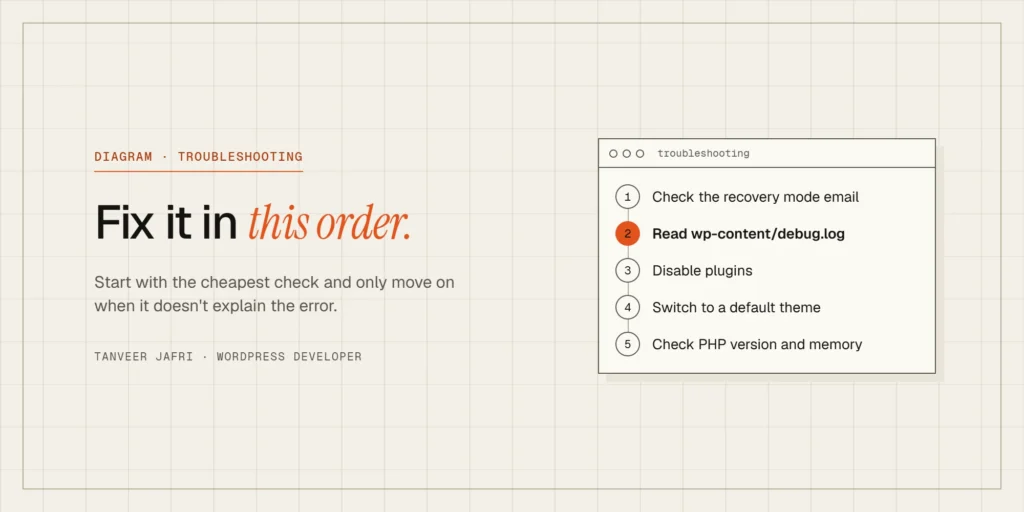
When a fatal error happens, WordPress tries to email the site’s admin address with the subject “Your Site is Experiencing a Technical Issue”. That email is the fastest route to a fix, because it usually names the plugin or theme that caused the error and includes a special recovery mode link.
The recovery link logs you into the dashboard with the faulty plugin or theme paused, just for your session. From there you can deactivate it, roll it back or replace it, and visitors will see a working site again.
If the email never arrived, check your spam folder and which address is set as the admin email. Many sites can’t send email reliably at all, which is a separate problem worth fixing.
Step 2: turn on the debug log
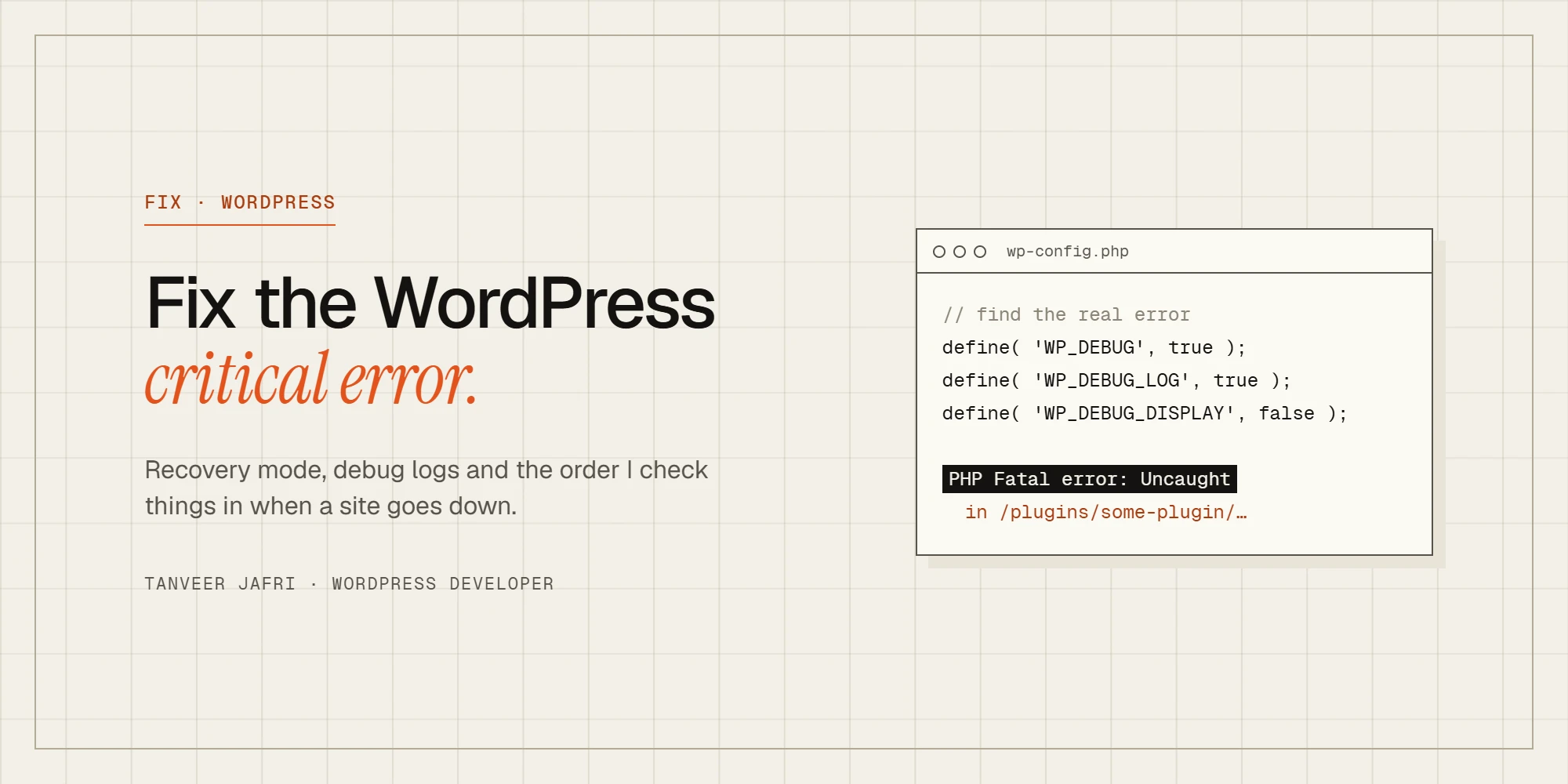
If there’s no email, the error log will tell you what broke. Connect with your host’s file manager or SFTP, open wp-config.php in the site’s root folder and find the line that says WP_DEBUG. Replace it with:
define( 'WP_DEBUG', true );
define( 'WP_DEBUG_LOG', true );
define( 'WP_DEBUG_DISPLAY', false );
Reload the broken page, then open wp-content/debug.log. Look for a line that starts with PHP Fatal error. It tells you the file and line number that failed, and the folder name almost always reveals the culprit: /wp-content/plugins/plugin-name/ or /wp-content/themes/theme-name/.
Keep WP_DEBUG_DISPLAY set to false on a live site so visitors never see error details, and switch debugging off again when you’re done. Debug logs can grow large and shouldn’t be left publicly reachable. Many hosts also keep their own PHP error log in the control panel, which is worth checking if debug.log stays empty.
Step 3: rule out plugins
If the log points to a plugin, or you can’t read the log at all, disable plugins without the dashboard:
- In the file manager, open
wp-content. - Rename the
pluginsfolder toplugins-off. - Reload the site. If it works, a plugin was the cause.
- Rename the folder back to
plugins. WordPress will show the plugins as deactivated. - Reactivate them one at a time, reloading the site after each, until the error returns.
If you already know which plugin it is, just rename that plugin’s own folder instead. Once you’ve found it, check whether an update is available, roll back to the previous version, or contact the plugin’s developer with the exact error from the log.
Step 4: rule out the theme
If plugins aren’t the problem, the theme might be. Rename your active theme’s folder inside wp-content/themes. WordPress will fall back to a default theme such as Twenty Twenty-Five, if one is installed. If the site loads, the error is in your theme or child theme, very often in a recently edited functions.php.
Never edit theme files directly on a live site without a copy. If you use code snippets, a dedicated snippets plugin is safer than functions.php, because a bad snippet can be switched off without touching files.
Step 5: check PHP version and memory
Sometimes nothing changed on the site at all: the host upgraded PHP. Old plugins and themes that rely on removed PHP functions break immediately. In your hosting panel, check which PHP version the site runs and when it last changed. The long-term fix is updating or replacing the old code; switching back to the previous PHP version temporarily can get you online while you do that.
If the log says Allowed memory size exhausted, the site needs more PHP memory. You can raise WordPress’s limit in wp-config.php:
define( 'WP_MEMORY_LIMIT', '256M' );That only works up to the limit your host allows. If memory errors keep coming back, something is using far too much, often a heavy plugin, a huge import or a runaway query, and that’s worth investigating rather than just raising the number.
Step 6: repair a broken update
If an update was interrupted, you may find a .maintenance file in the site’s root folder, or a plugin folder that’s half empty. Delete the .maintenance file and re-upload a fresh copy of the affected plugin. If WordPress core itself looks damaged, you can reinstall it from Dashboard → Updates once you can log in, which replaces core files without touching your content.
When to restore a backup
If you can’t find the cause quickly and the site earns money, restoring a recent backup is a legitimate first move: get online, then investigate on a staging copy. Just remember that restoring a database backup on a WooCommerce store can lose orders placed since the backup was taken. Restore files only if the problem is in code, or export recent orders first.
How to stop it happening again
- Test updates on staging before applying them to the live site, especially on shops and membership sites.
- Update regularly. A site that’s two years behind is much more likely to break in one big jump.
- Keep daily off-site backups and check that you can actually restore them.
- Remove plugins you don’t use. Every plugin is another update that can conflict.
- Make sure your site can send email, so the recovery mode message actually reaches you.
These are the same habits I cover in my guide to hiring a WordPress developer: ask anyone working on your site how they back up and test before changing anything.
Frequently asked questions
Will the critical error delete my content?
No. The error stops pages from loading, but your posts, pages, products and orders are stored in the database and remain intact.
Why does my dashboard also show the critical error?
The same faulty code usually runs in the admin area too. Use the recovery mode link from the email, or disable the plugin or theme through the file manager as described above.
Can I fix it without FTP access?
Usually only through the recovery mode email. Without that, you need file access through your hosting control panel or SFTP. If you don’t have either, your host’s support team can often disable a plugin for you.
Need it fixed now?
Fixing WordPress errors is a big part of what I do, and my bug fix gig on Fiverr has a 5.0 rating from 30 reviews. If your site is showing the critical error and you’d rather not dig through log files, send me the URL and I’ll find the cause and get you back online.

Tanveer JafriFreelance WordPress developer. I build WooCommerce functionality, custom plugins and Elementor Pro sites. About me
Discussion
Comments