WordPress technical SEO: an audit you can run in an afternoon
Before you write more content or buy links, make sure search engines can crawl, understand and index the site you already have.
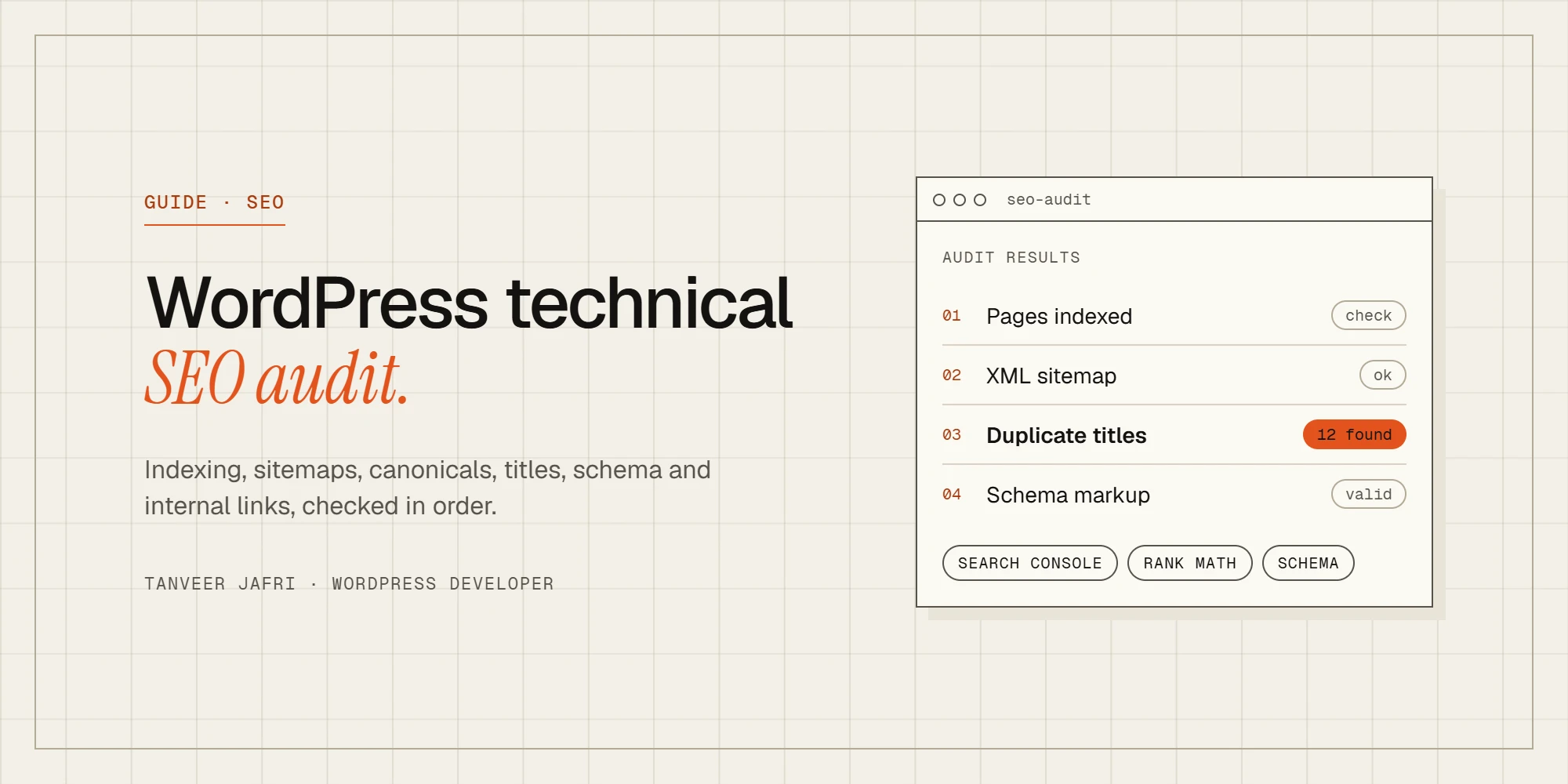
Technical SEO is the part of search optimization that nobody sees and everybody depends on. You can write excellent content, but if search engines can’t crawl it, can’t tell which version is the real one or think it’s a duplicate, it won’t rank. The good news is that WordPress handles a lot of the basics, and a focused WordPress technical SEO audit catches most of what it doesn’t. This is the checklist I run on client sites, in the order I run it.
What you need
- Google Search Console, verified for the domain. This is the most important tool on the list, and it’s free.
- An SEO plugin such as Rank Math or Yoast, for titles, sitemaps, schema and redirects. I use Rank Math on most sites.
- A crawler such as Screaming Frog (free for up to 500 URLs) to see the site the way a search engine does.
- PageSpeed Insights for speed and Core Web Vitals.
1. Can search engines index the site?
Start with the problem that breaks everything:
- In Settings → Reading, make sure “Discourage search engines from indexing this site” is unchecked. It’s surprisingly common for a site to launch from staging with it still on.
- In Search Console, open the Pages report. Compare indexed pages with the number you expect. Read the reasons under “Why pages aren’t indexed”: “Crawled, currently not indexed”, “Duplicate without user-selected canonical” and “Excluded by noindex tag” each point to a different fix.
- Use the URL Inspection tool on your most important pages to confirm they’re indexed and that Google sees the content you expect.
2. Sitemap and robots.txt
Your XML sitemap tells search engines which URLs matter. Check that:
- It exists, usually at
/sitemap_index.xmlwith Rank Math or Yoast, or/wp-sitemap.xmlwith WordPress core alone. - It only lists pages you want indexed: no thank-you pages, no test pages, no empty tag archives.
- It’s submitted in Search Console, with no errors.
Then open /robots.txt. It should be short. The classic mistake is a leftover Disallow: / from development, which blocks the whole site. Don’t block CSS or JavaScript files either; Google needs them to render pages properly.
3. One version of every page
Search engines should see exactly one version of your site and each page:
- http vs https and www vs non-www: all variations should redirect to a single version with one 301 redirect.
- Canonical tags: every page should have a canonical URL pointing to itself, unless it’s genuinely a copy of another page. SEO plugins add these automatically; check that page builders or custom code haven’t broken them.
- Thin archive pages: tag archives with one post, author archives on single-author sites, date archives and attachment pages add hundreds of low-value URLs. Set them to noindex, or redirect attachment pages to the file or parent post. Rank Math does this with a single setting.
- Parameters: filtered and sorted URLs on WooCommerce shops shouldn’t compete with the main category pages.
4. Titles, descriptions and headings
Run a crawl and sort by title:
- Every page needs a unique, descriptive title, roughly 50–60 characters, with the main topic near the start. Duplicate titles across service or product pages are common and easy to fix.
- Meta descriptions don’t directly affect rankings but strongly influence clicks. Write them for important pages; aim for about 150–160 characters that say what the page offers.
- One H1 per page, describing the page’s main topic, followed by H2 and H3 headings in a logical order. Page builders make it easy to pick a heading tag for its size, which breaks this structure.
5. Structured data
Schema markup helps search engines understand what a page represents. On most WordPress sites, check:
- Organization or Person on the homepage, with your name, logo and social profiles.
- LocalBusiness for service businesses with an address or service area. I cover this in more detail in the local SEO checklist for WordPress.
- Article for blog posts, Product for WooCommerce products, BreadcrumbList for breadcrumbs.
Test key pages with Google’s Rich Results Test and fix any errors. Only mark up what’s actually visible on the page.
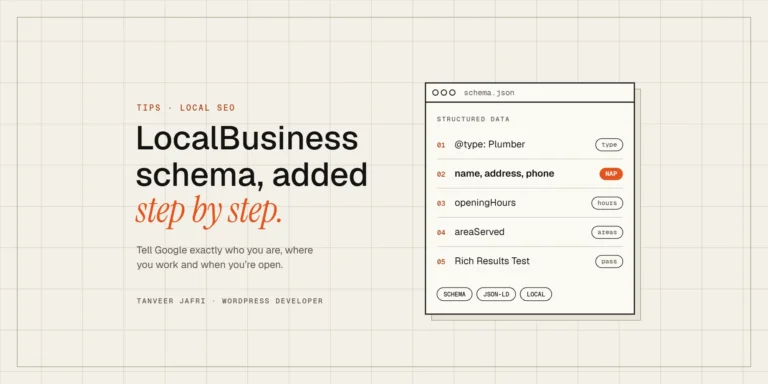
For local businesses, the most useful schema is LocalBusiness. Here’s how to add LocalBusiness schema to WordPress, step by step.
6. Internal links
Internal links tell search engines which pages matter and how topics relate. Check:
- Your main service or product pages are linked from the homepage and navigation.
- Blog posts link to the relevant service page and to related posts.
- No important page is an orphan with zero internal links. The crawler will show inbound link counts.
- No internal links point to redirects or 404 pages. Update them to the final URL.
Link text should describe the destination. “WordPress speed optimization” tells Google far more than “click here”.
7. Broken pages and redirects
- Fix 404 errors that receive traffic or links by redirecting them to the most relevant live page.
- Remove redirect chains where one URL redirects to another that redirects again.
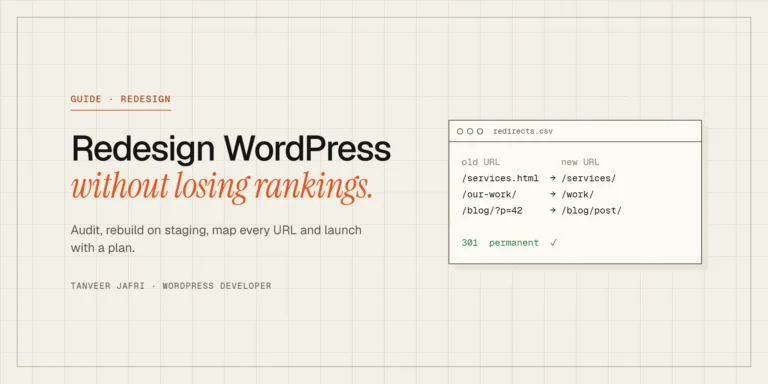
- After any redesign or migration, check old URLs carefully. My WordPress redesign guide explains how to map them before launch.
8. Speed and mobile
Google indexes the mobile version of your site, so audit it on a phone. Check that text is readable without zooming, buttons aren’t too close together and nothing is hidden on mobile that matters for ranking. Then check Core Web Vitals in Search Console. My guide to Core Web Vitals for WordPress covers how to fix LCP, INP and CLS.
If the audit shows a slow site, start with the cause rather than another plugin: why Elementor sites get slow and why WooCommerce is so slow, even with caching cover the usual suspects.
9. Images
- Descriptive file names and alt text that describes the image, for accessibility and image search.
- Images compressed and served as WebP or AVIF, at the size they’re displayed.
- Width and height attributes set, so the layout doesn’t shift.
10. Security and housekeeping
- The whole site runs on HTTPS with no mixed-content warnings.
- No hacked or spam pages indexed. Search
site:yourdomain.comand look for anything you didn’t publish. - Search Console’s Security & Manual Actions report is clean.
WooCommerce-specific checks
Online stores add a few technical SEO problems of their own:
- Out-of-stock and discontinued products. Keep pages for items that will return; redirect permanently discontinued products to the closest alternative or their category instead of leaving 404s.
- Faceted navigation. Filters for size, color and price can generate thousands of URL combinations. Keep them out of the index unless a filtered page targets a real search, such as a popular category-and-brand combination.
- Cart, checkout and My Account pages should be noindexed and excluded from the sitemap.
- Product schema should include price, availability and reviews only if they’re shown on the page.
- Category pages deserve real introductory text, not just a grid of products.
On stores, check the back end too: a slow dashboard often points to the same database problems. See why the WooCommerce admin is slow.
After the audit
Turn your findings into a short, prioritized list: anything blocking indexing first, then duplicates and canonicals, then titles and internal links, then everything else. Fix, request reindexing for important pages, and check the Pages report again in a few weeks. Technical SEO isn’t a one-time job, but after a solid first pass, a quarterly check is usually enough.
Frequently asked questions
Does WordPress handle SEO automatically?
It handles some basics, such as clean URLs and a simple sitemap. Titles, descriptions, schema, archive settings, redirects and internal linking still need attention, usually through an SEO plugin and some manual work.
Rank Math or Yoast?
Both are good. I use Rank Math on most projects because it includes redirects, schema options and attachment redirects in the free version. The setup matters more than the choice.
How long until fixes show in Google?
Indexing fixes can show within days once Google recrawls the pages. Ranking improvements usually take weeks, depending on how often your site is crawled.
Want a second pair of eyes?
SEO: on-page, off-page and local is one of my services, and a technical audit is where I start on every site. If you’d like me to run this checklist on your site and fix what I find, send me your URL.

Tanveer JafriFreelance WordPress developer. I build WooCommerce functionality, custom plugins and Elementor Pro sites. About me
Discussion
Comments