WooCommerce admin slow? How to speed up a sluggish dashboard
The shop is fast but the WooCommerce dashboard crawls? The real causes, from Action Scheduler backlogs to autoloaded options and HPOS, and how to fix each one.
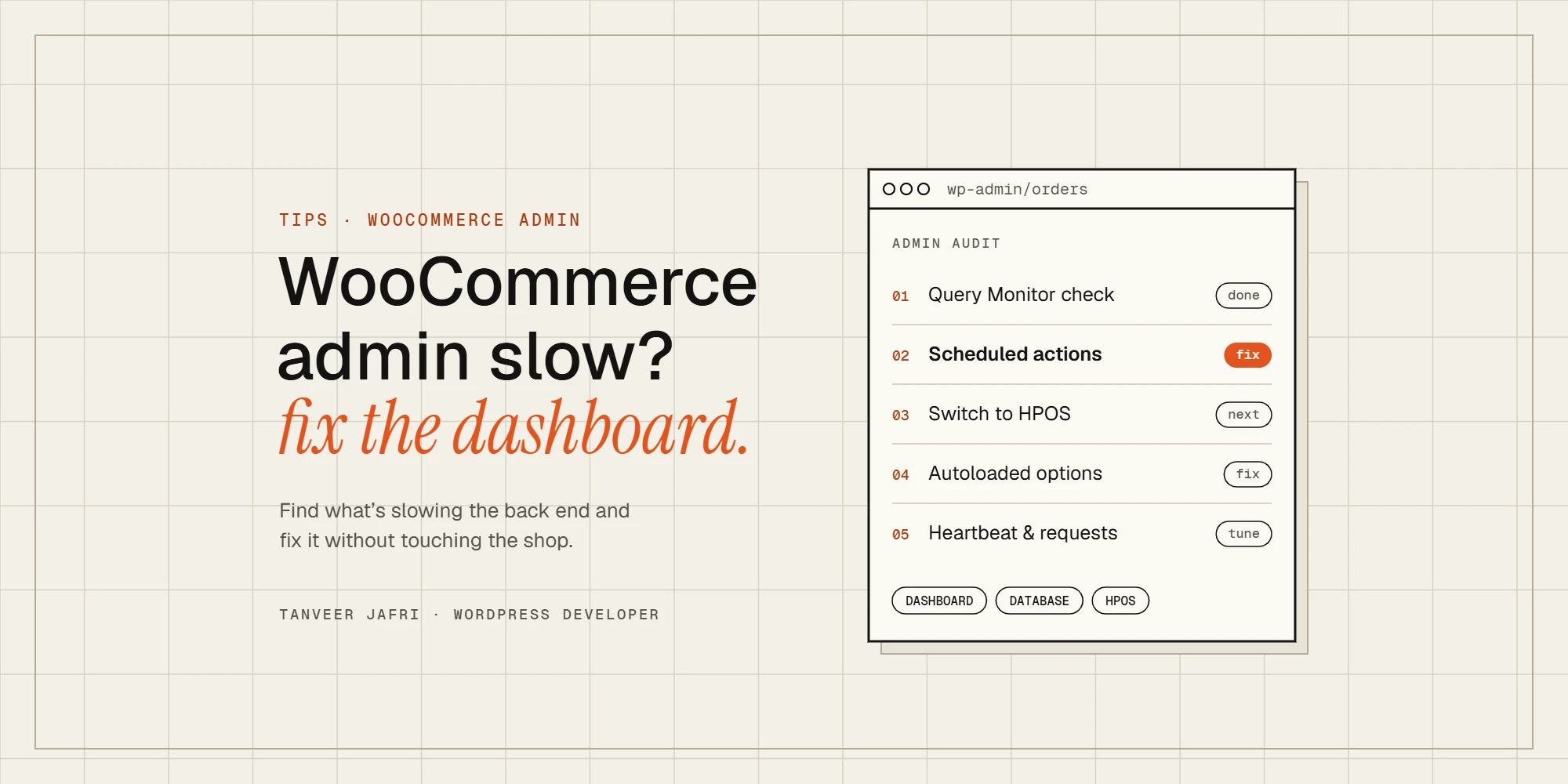
Your shop loads fine for customers, but the WooCommerce dashboard takes ten seconds to open an order, the products list hangs and saving a product feels like waiting for a bus. That’s a different problem from a slow storefront. Page caching doesn’t help at all in the admin, because every admin screen is built fresh for you. Here’s what usually slows the WooCommerce admin down and how I fix it.
Why is the WooCommerce admin so slow?
Short answer: the admin does far more work per page than the shop, none of it is cached, and it grows with every order, product and plugin you add. The usual causes are:
- Plugins that load on every admin screen, including ones you only need once a month.
- A backlog of scheduled actions in the Action Scheduler: thousands of failed or pending tasks.
- Orders stored the old way in the posts and postmeta tables instead of High-Performance Order Storage.
- Too many autoloaded options: data that WordPress loads on every single request.
- The Heartbeat API and admin-ajax firing constantly while the dashboard is open.
- Slow external requests: plugins checking licences, news feeds or marketplace suggestions on every page load.
- Hosting limits: old PHP, low memory and no object cache.
First, find out what’s slow
Guessing wastes hours. Install Query Monitor and open the slow screen. It shows the slowest database queries, which plugin made them, HTTP requests to outside services and how long each took. If one plugin is responsible for most of the time, you’ve found your answer.
Then use the Health Check & Troubleshooting plugin’s troubleshooting mode. It disables plugins for your user only, so customers aren’t affected, and you can turn plugins back on one by one until the slowness returns.
Clear the Action Scheduler backlog
WooCommerce and many extensions queue background tasks in the Action Scheduler: emails, webhooks, subscription renewals, analytics imports. When something fails repeatedly, the table grows into hundreds of thousands of rows. Go to WooCommerce → Status → Scheduled Actions and check the Past-due and Failed tabs.
- If hundreds of actions are past-due, WP-Cron probably isn’t running reliably. Set up a real server cron job and disable the page-load cron.
- Find which hook is failing and fix the plugin behind it, rather than just deleting the rows.
- Once fixed, clean up old completed and failed actions so the tables stay small.
Switch to High-Performance Order Storage
High-Performance Order Storage (HPOS) keeps orders in dedicated tables instead of mixing them with posts. On stores with many orders, the orders screen, searching and reporting get noticeably faster. New stores use it by default; older stores can switch in WooCommerce → Settings → Advanced → Features.
Check that all your order-related plugins are compatible first (WooCommerce warns you about incompatible ones), turn on compatibility mode so both storage methods stay in sync, test on a staging copy, then switch.
Trim autoloaded options and old data
WordPress loads every “autoloaded” option on every request. Plugins you deleted years ago often leave large autoloaded options behind. Recent WordPress versions warn about this in Tools → Site Health. Look for the biggest entries, check which plugin they belong to, and remove the leftovers. Take a backup first.
- Delete expired transients and orphaned postmeta.
- Limit post revisions, especially on products edited often.
- Archive or export very old orders if you don’t need them in the live database.
Calm the Heartbeat and admin-ajax
The Heartbeat API sends a request every 15 to 60 seconds while an admin screen is open, for autosaves, post locking and notifications. With several people logged in, those requests add up. Reduce its frequency, or disable it on screens where you don’t need it, with a caching plugin’s Heartbeat setting or a small snippet. Keep it on the post editor so autosave still works.
Stop slow external requests
Some admin screens wait for outside services before they load: licence checks, remote news, marketplace suggestions and “recommended extensions”. Query Monitor’s HTTP API calls panel shows them. In WooCommerce you can turn off marketplace suggestions under WooCommerce → Settings → Advanced → WooCommerce.com. For other plugins, check their settings or ask the developer.
Hosting, PHP and object caching
- Use a current PHP 8 version. It’s one of the cheapest speed-ups there is.
- Give the admin enough memory. WordPress can use a higher limit in the dashboard (WP_MAX_MEMORY_LIMIT); 256MB or more suits most stores.
- Add a persistent object cache (Redis or Memcached). It helps the admin more than the shop, because nothing in the admin is page cached.
- Check the server’s slow query log if your host provides one.
If the storefront is slow too, read why WooCommerce is so slow, even with caching, and if you use WP Rocket, here are the WP Rocket settings I use on WooCommerce stores.
Frequently asked questions
Why is the WooCommerce orders page so slow?
Usually because orders are still stored in the posts tables and the store has a lot of them, or a plugin adds extra columns that run slow queries for every order in the list. Switching to HPOS and checking the orders screen in Query Monitor normally finds the cause.
Can too many products slow down the admin?
Yes, mainly on the products list and when saving variable products with many variations. Showing fewer products per page and fixing slow plugin queries helps more than deleting products.
Will a caching plugin speed up the WooCommerce dashboard?
Page caching won’t, because admin pages are never cached. An object cache will, along with fewer plugins, a cleaner database and better hosting.
Need a hand?
If your WooCommerce admin is painfully slow and you’d rather not dig through database tables yourself, tell me what’s happening and I’ll find the cause. You can also see my services and recent work.

Tanveer JafriFreelance WordPress developer. I build WooCommerce functionality, custom plugins and Elementor Pro sites. About me