WooCommerce checkout optimization: 12 fixes that reduce abandoned carts
Most WooCommerce stores lose around 70% of carts before payment. These 12 practical checkout fixes (fewer fields, express payments, clear costs, faster pages and better recovery) win back sales without a redesign.
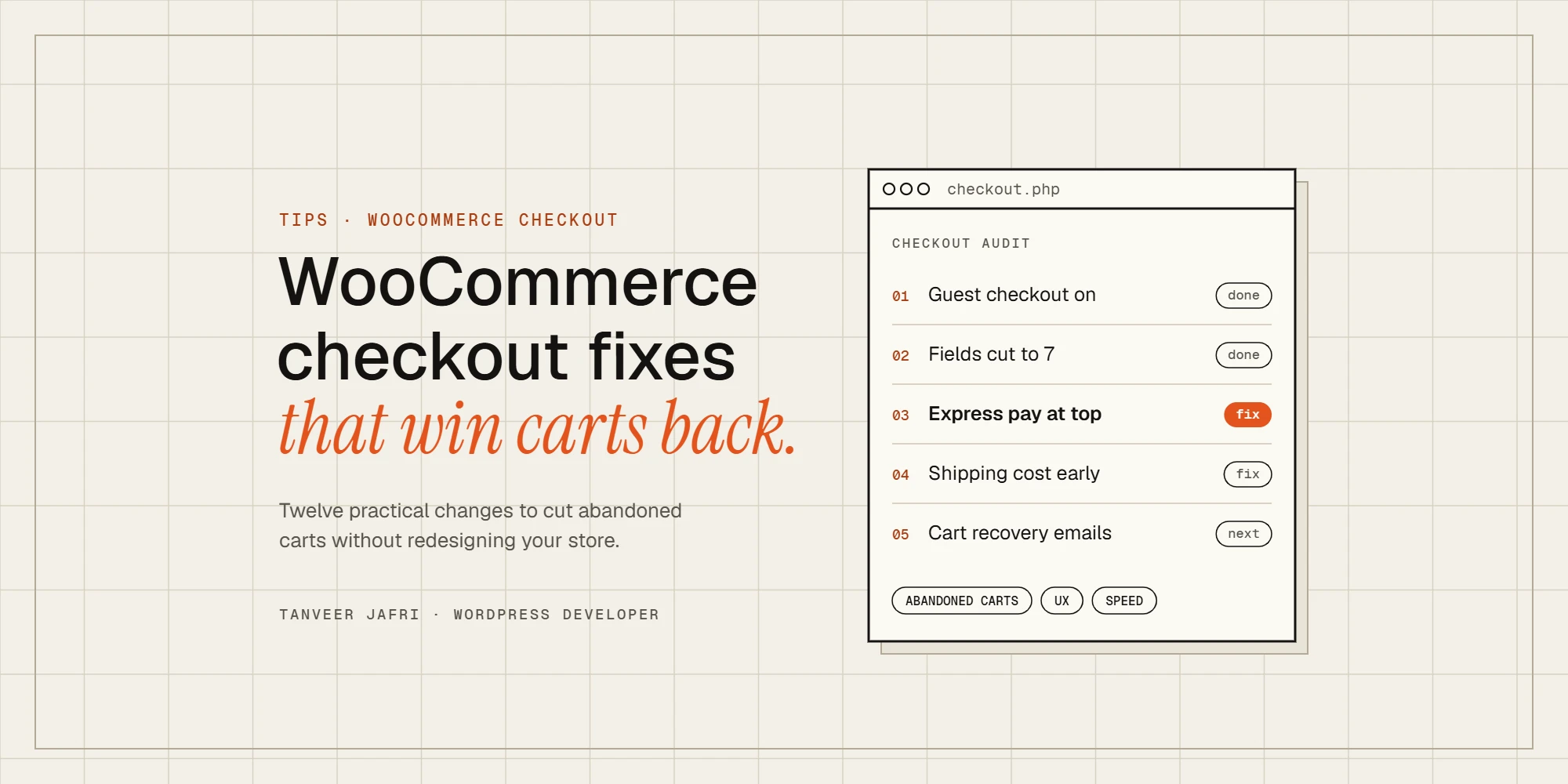
Most WooCommerce stores lose more sales at checkout than anywhere else. Shoppers find the product, add it to the cart, start paying and then leave. Baymard Institute, which has tracked checkout research for years, puts the average online cart abandonment rate at around 70%. You will never get that to zero, because some people are only browsing. But a good share of those exits come from problems you can fix. These are the checkout fixes I make most often on client stores, roughly in order of impact.
Why shoppers leave at checkout
Before changing anything, it helps to know what usually goes wrong. Across Baymard’s surveys, the same reasons keep coming up:
- Unexpected costs. Shipping, tax or fees that only appear at the last step are the most common reason people abandon.
- Being forced to create an account before they can pay.
- A long or confusing checkout with too many fields.
- Not trusting the site with their card details.
- Slow delivery or delivery options that are hard to understand.
- Errors, crashes or a payment that fails without a clear reason.
Every fix below targets one of these.
1. Show the full cost early
Surprise costs are the biggest checkout killer, so remove the surprise. Show shipping costs or a clear “shipping from” price on product and cart pages, and use the WooCommerce shipping calculator on the cart. If you offer free shipping over a threshold, say so near the cart total with how much more the shopper needs to spend. If your prices exclude tax, make that obvious before checkout.
2. Allow guest checkout
Forcing an account is a quick way to lose first-time buyers. In WooCommerce → Settings → Accounts & Privacy, allow customers to place orders without an account. You can still offer to create an account after the order, when the customer has nothing to lose. B2B and wholesale stores are the exception: if only approved buyers can order, handle that before checkout with a proper customer approval workflow, not at the payment step.
3. Ask for fewer fields
Every field is another chance to give up. Look at your checkout and ask whether you really need each one:
- Company name and address line 2 can usually be optional or hidden.
- Phone number is often only needed for certain couriers. Make it optional if you can.
- Order notes can be collapsed behind a link.
- Billing address can default to the shipping address.
With the WooCommerce Checkout block, you can switch the company, address line 2 and phone fields between hidden, optional and required in the block settings. On classic checkouts, a few lines of code or a checkout field editor plugin do the same job.
4. Add express payment options
Apple Pay, Google Pay and similar wallets let customers pay with details they have already saved, which is especially useful on mobile. Payment gateways such as WooPayments and Stripe can show these as express buttons at the top of the cart and checkout. Fewer typed card numbers means fewer mistakes and fewer exits.
5. Build trust where people pay
Shoppers are most nervous at the moment they enter card details. Help them feel safe:
- Make sure the whole site uses HTTPS without mixed-content warnings.
- Show the payment methods you accept and a short line about secure payment near the payment section.
- Link your returns, refund and delivery policies from the checkout.
- Show a real phone number, email or chat option so people know they can reach someone.
Avoid filling the page with fake badges. A clear returns policy and real contact details do more than a row of generic logos.
6. Make cart and checkout fast
Cart and checkout pages can’t be fully page-cached because they are different for every shopper, so slow hosting shows here first. Use persistent object caching, keep plugins that load scripts on every page to a minimum and test the checkout on a mid-range phone, not just your laptop. I wrote more about this in why your WooCommerce store feels slow, even with caching.
7. Design the checkout for phones
- Use large tap targets and a single-column layout.
- Make sure fields use the right keyboard: email, number and phone inputs.
- Keep browser autofill working by using the standard WooCommerce field names.
- Keep the order summary available but collapsed, so the form comes first.
8. Show clear, specific errors
“There was an error processing your order” tells the customer nothing. Errors should appear next to the field that needs fixing and say what to do, for example “Enter a postcode for the UK.” If a payment is declined, say so in plain words and keep everything the customer already typed.
9. Don’t make people hunt for coupons
A big, empty coupon box sends shoppers off to search for a code, and some never come back. Collapse it behind a small “Have a coupon?” link. If you run a promotion, apply it automatically or show the code on the page.
10. Make delivery options easy to understand
Name your shipping methods clearly, with an estimated delivery time and price, for example “Standard, 3–5 working days, $6”. If your rules are more complex, such as different warehouses or product types, WooCommerce can do much more than flat rates with the right setup.
11. Recover abandoned carts
Some shoppers will always leave. If they entered their email, a short, helpful reminder an hour or a day later can bring a share of them back. Many email marketing platforms and WooCommerce extensions offer abandoned cart emails. Keep them useful: remind people what they left, answer common questions and only add a discount if your margins allow it. Make sure your privacy policy and consent settings cover these emails.
12. Measure the checkout, then test
Track the steps of your checkout so you can see where people drop off. Google Analytics 4 ecommerce events such as begin_checkout, add_shipping_info, add_payment_info and purchase show how many shoppers reach each step. Change one thing at a time, then compare a few weeks of data before and after.
Checkout checklist
- Shipping and tax are clear before checkout.
- Guest checkout is on (unless you are a B2B store).
- Only the fields you really need are required.
- Express payments are available on mobile.
- Policies and contact details are linked from checkout.
- Cart and checkout load quickly on a phone.
- Errors are specific and keep what the customer typed.
- The coupon field is collapsed.
- Shipping options show price and delivery time.
- Abandoned cart emails are set up and consented to.
- Checkout steps are tracked in analytics.
FAQ
Should I use the WooCommerce Checkout block or the classic checkout?
For most new stores, the Checkout block is a good default. It is the default checkout in current WooCommerce versions, it is easier to configure and it supports express payments well. Stores that rely on older checkout plugins or heavily customised checkout code may still need the classic shortcode checkout until those plugins support the block.
Is a one-page checkout better than a multi-step checkout?
Neither is always better. What matters is that the checkout is short, clear and fast. The default WooCommerce checkout is already a single page, so focus on removing fields and surprises before changing the layout.
How long does it take to optimise a WooCommerce checkout?
Quick wins like guest checkout, fewer fields and a collapsed coupon box can be done in a day. Express payments, custom shipping rules and abandoned cart emails usually take a few more days, plus time to measure the results.
Need a hand with your checkout?
If your store gets traffic and add-to-carts but not enough orders, the checkout is the first place I look. Send me your store link and I’ll tell you what I would fix first. You can also see my WooCommerce services and recent work.

Tanveer JafriFreelance WordPress developer. I build WooCommerce functionality, custom plugins and Elementor Pro sites. About me